We all have been waiting for a function that helps us extract the JSON data using AmpScript. Earlier, we had to rely on SSJS and GTL to get the JSON data. However, the BuildRowSetFromJSON function is easy to use and quite handy.
Syntax – BuildRowSetFromJSON(1, 2, 3)
https://developer.salesforce.com/docs/marketing/marketing-cloud/guide/buildrowsetfromjson.html
| 1 | String | Required | Source JSON string to parse. |
| 2 | String | Required | JSONPath argument to query the JSON fields used to build the rowset. |
| 3 | String | Required | Indicates whether to return an empty rowset on error. A value of 0 does not return an empty rowset. A value of 1 returns an empty rowset. |
Scenario & Task – Going to use the same scenario as in my previous post. Create an SMS in mobile connect with shortened LoginURL. We will use BuildRowSetFromJSON instead of the GTL. Click to read more about GTL usage in SFMC.
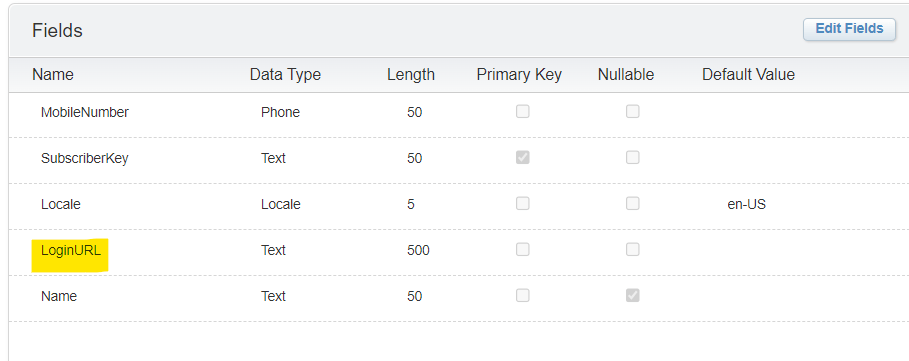
Data Extension columns –
- Go to Mobile Connect – Create Message.
- Select the type of message you want to create.
- Type in the Message name and select the long/shortcode.
- Select the sendable data extension and click next.
- Add this script to your message –
%%[SET @endpoint = "https://api-ssl.bitly.com/v4/shorten"SET @contentType = "application/json"SET @bitlyToken = "GettheBITLYtokenfromBITLYACCOUNT"SET @additionalHeaderName = "Authorization"SET @LoginURL = [LoginURL]SET @additionalHeaderValue = CONCAT("Bearer ", @bitlyToken)SET @payload = CONCAT('{"group_guid":"BITLYgroupIDhere","domain":"bit.ly","long_Url":"',@LoginURL,'"}')SET @request = HTTPPost(@endpoint, @contentType, @payload, @Response, @additionalHeaderName, @additionalHeaderValue)/* the response body doesn't have the root key hence adding a key - RawURL to the response so that it can be used to build the query rowset*/SET @ResponseString = Concat('{"RawURL":[',@Response,']}')SET @Rows = BuildRowsetFromJson(@ResponseString, "$.RawURL[*]", 1)SET @RowCount = RowCount(@Rows) SET @URLRow = ROW(@Rows,1)SET @link = FIELD(@URLRow, "link") ]%%Hi There! Please login to your account by clicking on the link - %%=v(@link)=%%
- Once done. Click next and save your SMS. Your SMS is now ready for send and it will deliver the shortened URL.
Note – Update – bitlyToken, group_guid as per your bitly account. You can find this by following the bitly API support document – https://dev.bitly.com/api-reference/#createBitlink

 Simplifying Marketing Cloud Challenges
Leave a comment